Before you begin, make sure you have DNS configured properly for the mail. If you are using our DNS service and have zones for the domain, this should be automatic.
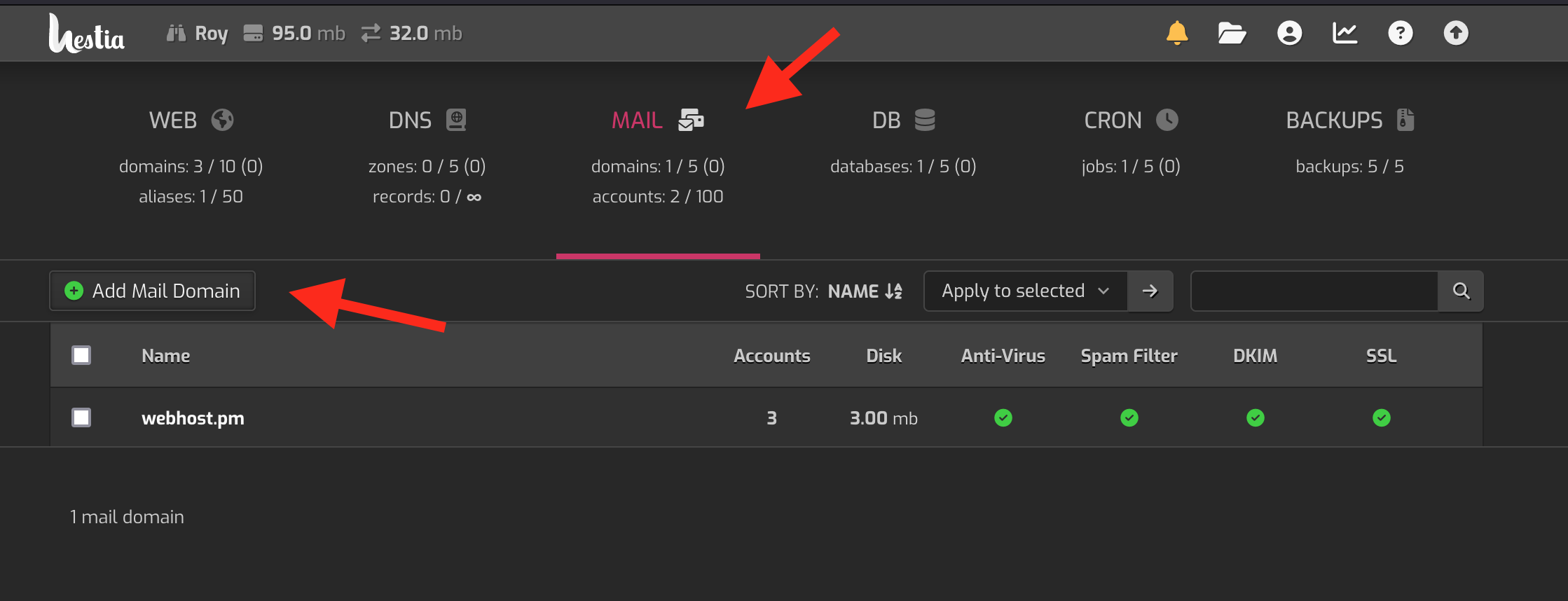
Navigate to your control panel. See the article "Login to your control panel" for help. Go to the “mail”-section and click “Add mail domain”.
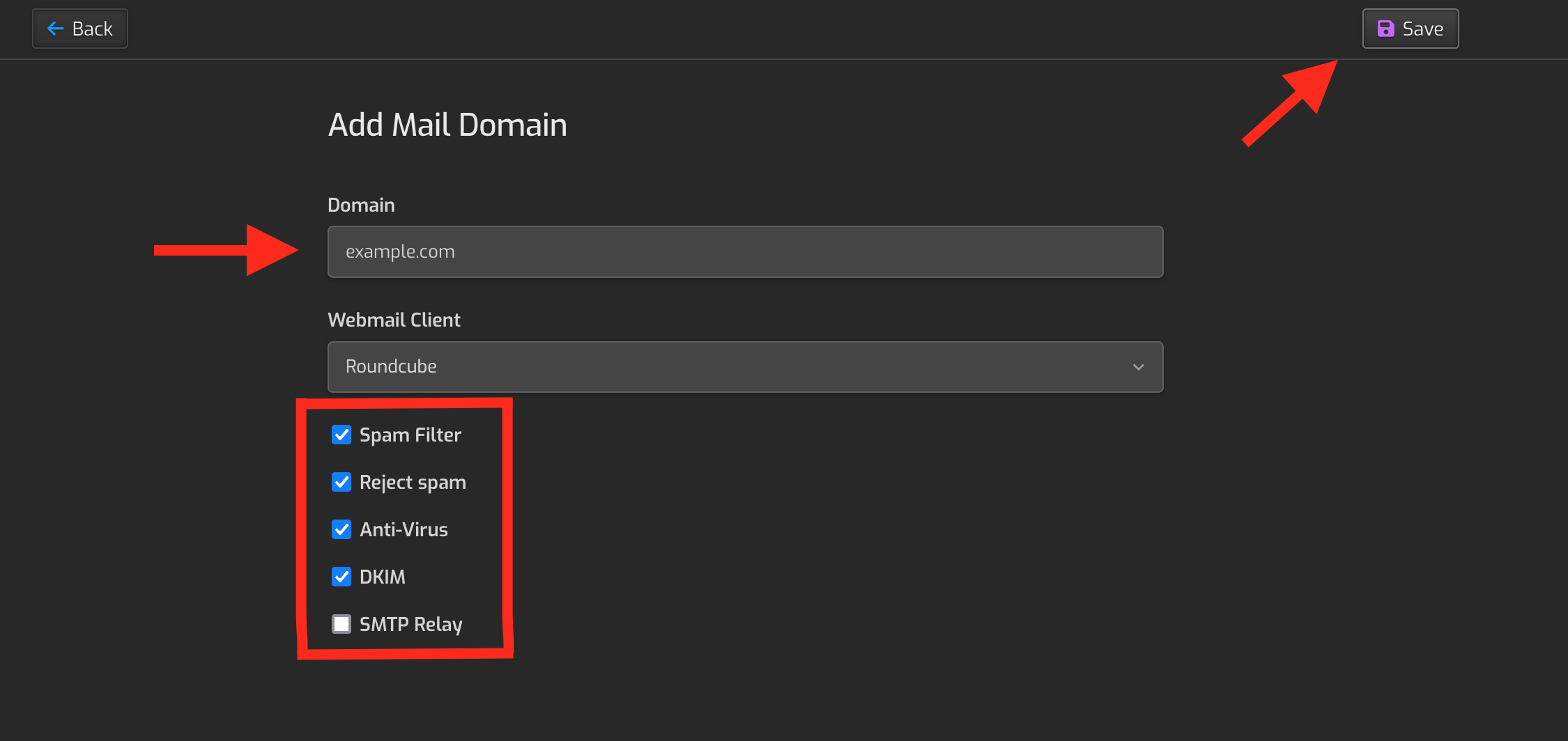
Enter your domain there and tick all the boxes except SMTP relay. Remember to submit the form by clicking “save” on the top right corner.
Now you can create accounts like: name@example.com. See “Creating a mail account” for help.
Verifying you have SSL enabled for the domain
If you don't have SSL enabled for the domain, this might lead to certificate issues when the email client can't verify the server is the one it is saying it represents. After you have created the mail domain make sure the domain has SSL (there is a checkmark with green background on the email domain list).
This is what is should look like:

If there is a cross with red background like this:

You have to edit the mail domain settings (hover / move your cursor over the area where the edit-button should be to have it appear)

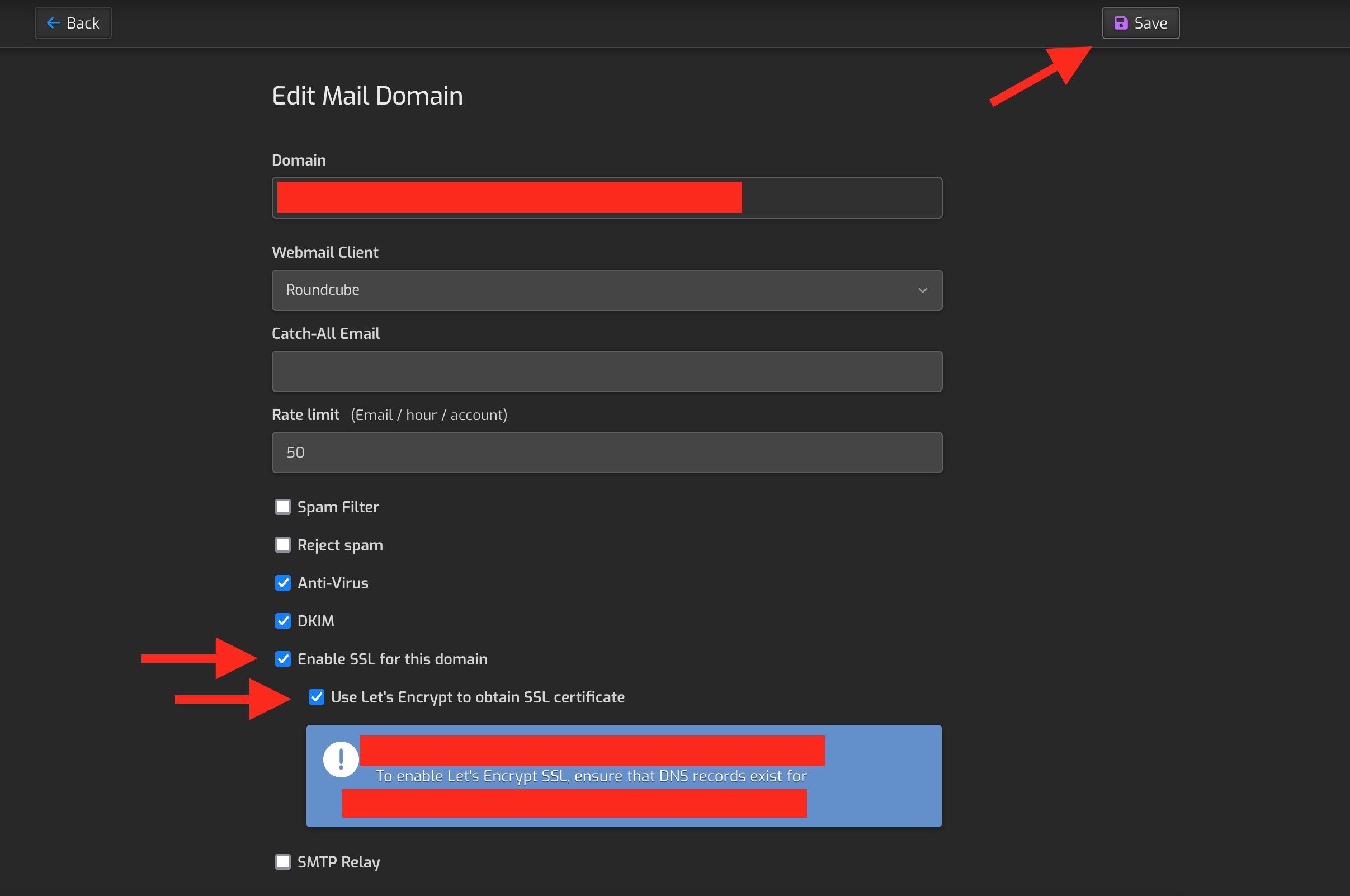
Once you can edit the settings choose “Enable SSL for this domain” box and select Let's Encrypt as the SSL provider. Remember to save the settings by clicking the “save”-button on the top-right corner. This might take some time since the server generates now the SSL certificates.