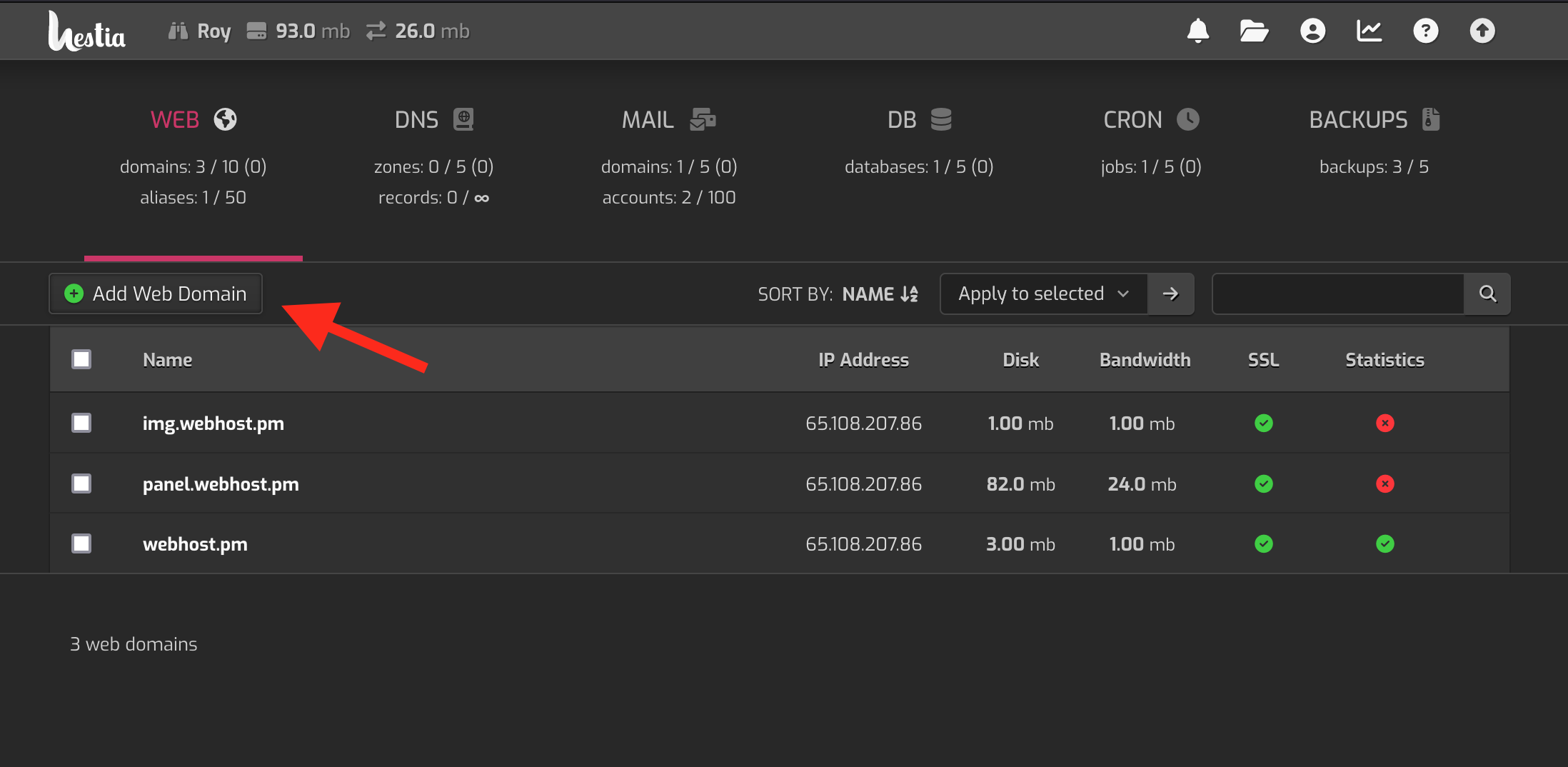
Go to your control panel. Make sure you are in “Web”-section. Once you are there, select “Add web domain” from top-left corner (see image below). Before adding a new domain make sure you have DNS set up. If you are using our DNS servers (ns1.webhost.pm & ns2.webhost.pm), verify that the “DNS”-section has zones created for the domain.
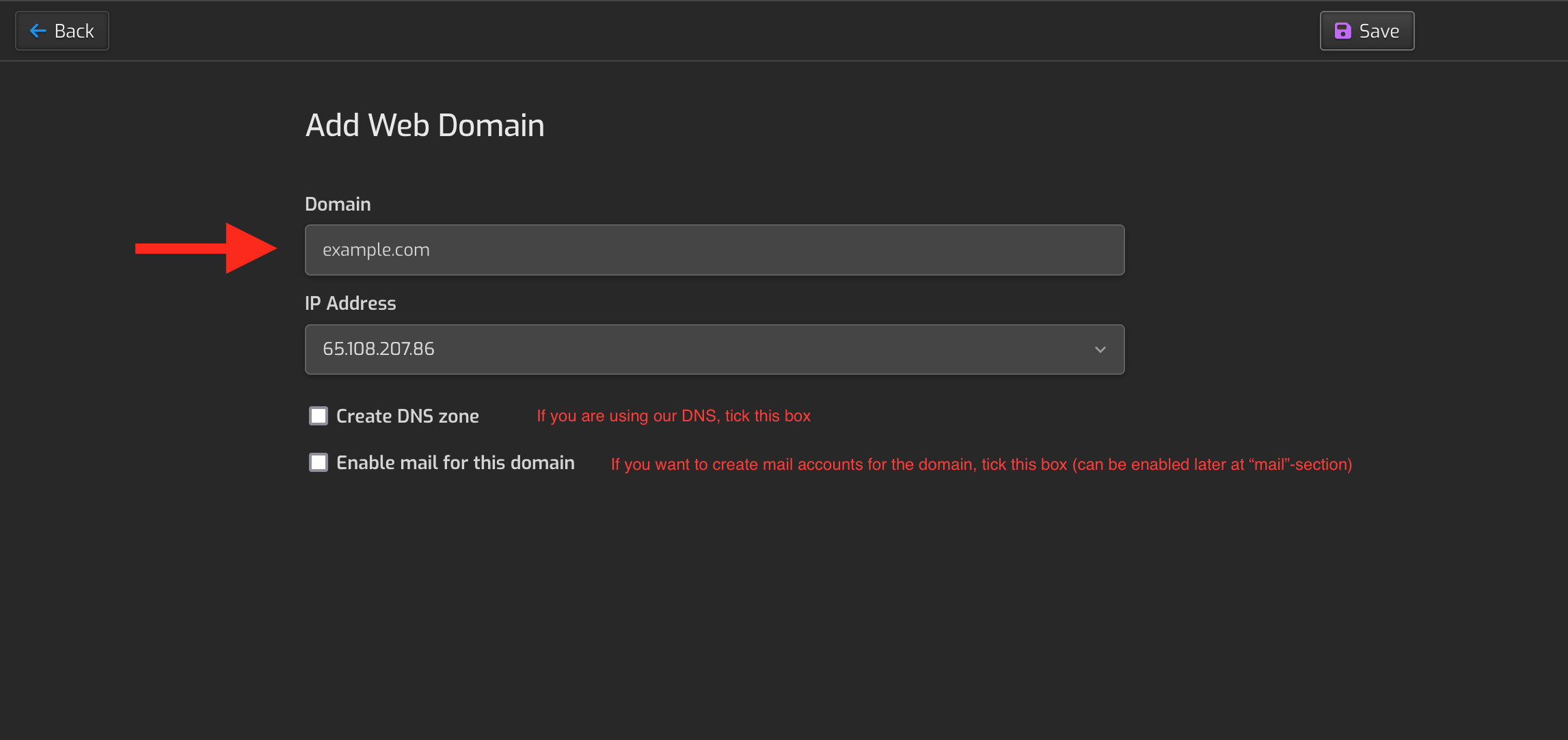
If you are using our nameservers, tick the “Enable DNS” box. You can also add the domain as a mail domain at this point by ticking the “Add as a mail domain” box. This can though be done later at the “Mail”-section.
Submit the form on the top right corner by clicking the "save"-button.
SSL
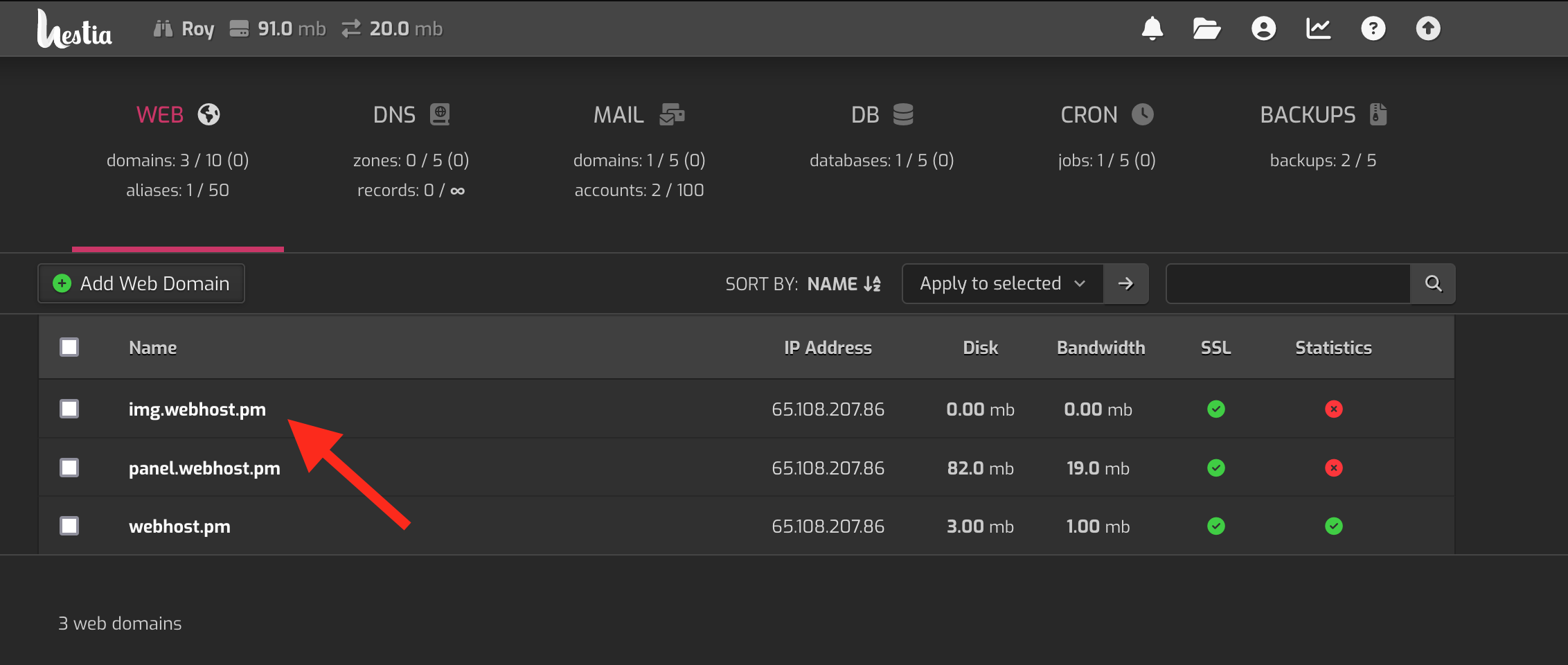
Open settings for the newly added website from “Web”-section by clicking the website domain.
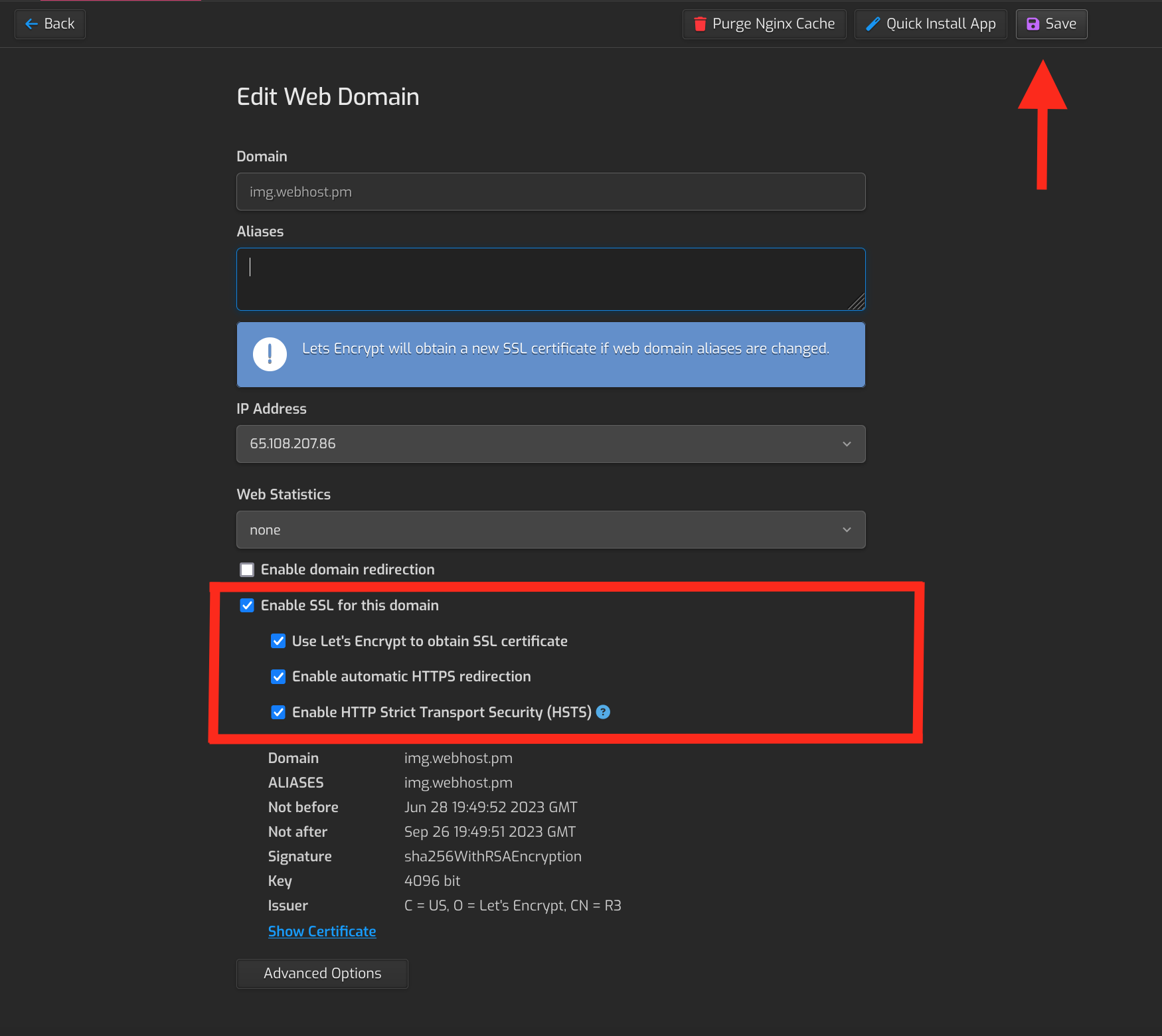
Scroll down and select “Enable SSL for this domain”. Tick all the boxes under it too. “Let's Encrypt” is an SSL certificate provider, HTTPS redirection forwards users from insecure http://example.com to secure https://example.com and HSTS disallows insecure http access. See image below.
FTP / File access
Please see article Accessing website files.